
Goal
Smart Pension is a workplace pension scheme provider. With workplace pension schemes, employees and employers make a contribution to the employee’s pension every pay period.
This means that, every pay period, Smart Pension needs the employer to provide a contribution record for each of their employees that says “this pay period the employer owes X and employee owes Y”, and then pay for the contributions. This is the employer’s legal obligation. But despite this, the customer service team reported that many smaller employers don’t seem to realise it’s a regular task and come close to breaking their contract. Many seem to think they need to upload a record once and it will be automatically deducted every pay period.
We need to help these employers with their legal duties and make sure they upload contribution records to Smart regularly.
This work formed part of a project to overhaul the entire employer platform and experience. It is part of a much wider end-to-end journey that I won’t cover here in full, including direct debits, email confirmations, etc.
Team
For this project I was working with:
• 2 UI designers (1 specialising in design systems)
• 1 User researcher
• 1 Project manager (the Head of UX Innovation, in this instance)
• 1 Me (Content + UX)
There was no pure UX designer or UX lead on this project, but as everything was content design heavy, I lead content and UX on this project.
Challenges
I teamed up with our user researcher who was on the project and we spoke to some employers who were using our platform. She sourced all of the participants and we pair-wrote a script of questions for her to use. I sat in on the research sessions to take notes, and helped synthesis the feedback. The main findings were:
• Employers didn’t know where to go to upload contribution records.
• They didn’t realise they have to do it every pay period. Some thought it was monthly, some thought it was a one-off.
• Smart uses the word “calculate” a lot and they didn’t understand what that was or how it related to uploading contribution records.
• Most of the user base lack pension administration experience – a large percentage of the employers who use the platform have <50 employees.
Let’s put this into context. This is a screenshot of the employer “dashboard”.
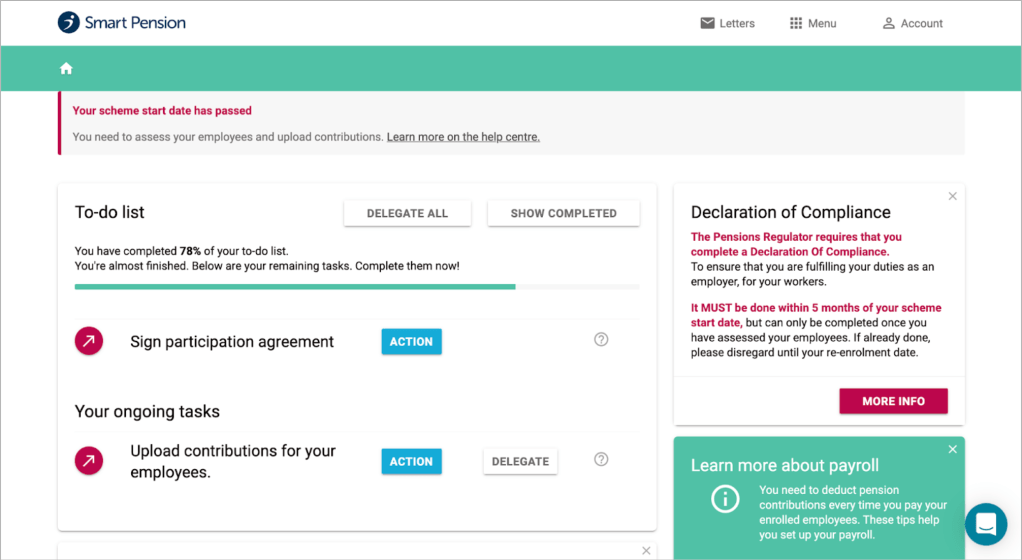
It’s not hard to see why these challenges exist. The existing content was written by engineering managers and there is lots of red going on.
The section “Your ongoing tasks” doesn’t give any indication to how often you are meant to upload contributions. There is a button that says “action” rather than having an actual CTA. The button brings you to this screen, titled “Manage contributions and ongoing payroll tasks”.
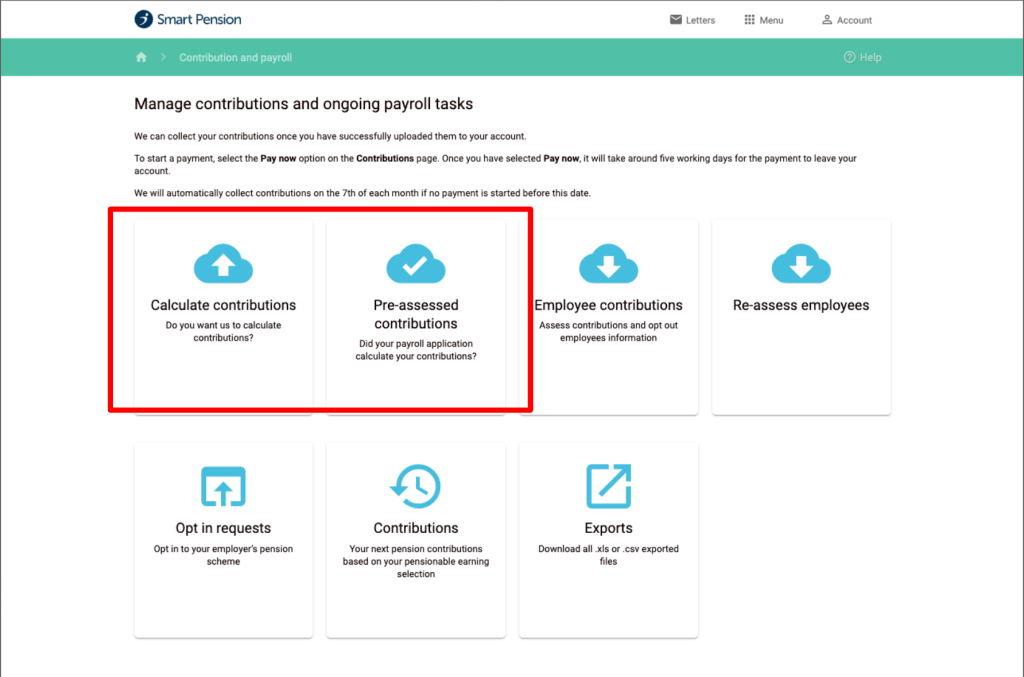
On this screen there are many, many cloud icons. The word “upload” is nowhere to be seen. What the user would actually need to do is click on one of the two options that I’ve highlighted here in red.
One lets you upload a PAPDIS file, which is a file format exported by some payroll software, the other lets you upload a CSV file of employee data.
Approach
Firstly, I needed to think about navigation and the process the user goes through to complete the task of uploading contributions.
I had previously done the wider information architecture and site map for the whole employer platform. I readjusted it to include a feature I had found deep elsewhere in the platform – the ability to add an individual contribution record by filling out a form. So, I changed the wording from “upload” contributions to “add” contributions.
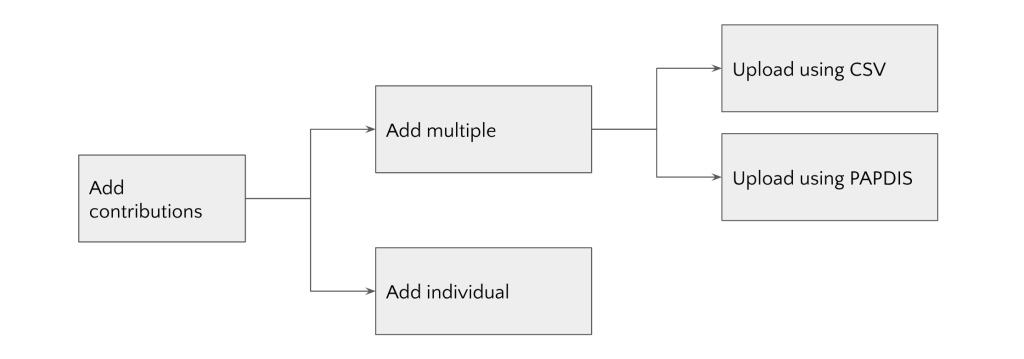
The rest of the team were happy with this so we started to wireframe it as a group using the drag and drop UI components in Figma. But, as I started to draft the content into the wireframes and look at what needed to be carried across from the old screens, I realised we were using the words “upload” “assess” and “calculate” interchangeably. The existing platform says “calculate” and “pre-assessed” – but the dashboard and the action we’d been talking about the entire time was “upload contributions”. As I was digging around it became clear I didn’t understand the process at all. None of us did in the team.
I found a subject matter expert in the operations team and teamed up with them. That’s when I found out the process was very different. It was much more complicated than uploading a file of your contribution records. It looked like this.
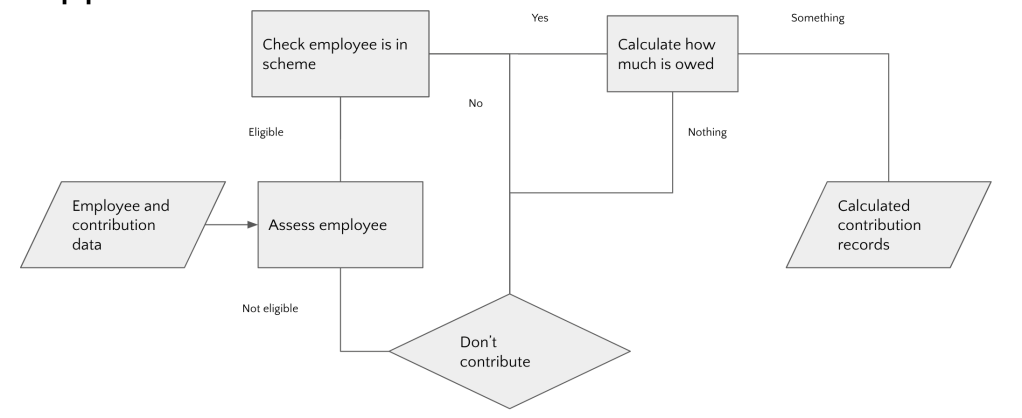
Employers don’t just upload a list of contribution records each pay period with PAPDIS or CSV. What’s actually happening is the employer is “assessing” their employees each pay period. Assessment is a term used in pension schemes. This means that:
• The employer supplies data about an employee (their salary, age, length of service, contract type) and their contribution details in percentages.
• The employee is assessed by software to see if they’re eligible to be in the scheme (this can change at any moment, which is why it needs to be done each pay period. For example, they might go from full time to part time, or turn 18 years old).
• If they’re eligible, the assessment process checks to see if they’re actually in the scheme – they might have opted out.
• And if they are in the scheme it’ll then calculate who owes what and create the contribution records.
If you’re uploading the CSV to Smart, you’re actually uploading the file input on the left of this diagram with employee data, and Smart does the assessment, the calculations, and creates the contribution records. Otherwise your payroll does everything for you and gives you a PAPDIS output which on the right hand side of the diagram, which you then upload to Smart.
Outcome
The word “assessment” is pretty unfamiliar, especially to those small employers with no pension knowledge. But we can’t skirt around using it and we can’t use a substitute. It’s used everywhere in pensions, it’s in all the regulatory stuff, and on gov.uk under your “employer responsibilities”. I needed to introduce the idea of assessment early and explain what it is to employers.
I sat with the UI designers and told them my thoughts on what we needed to say. They suggested the best way to handle it given our library of components and design system patterns. We put together a new landing page where I introduced assessment and explained what it meant, what it does, and that you have to do it every pay period.
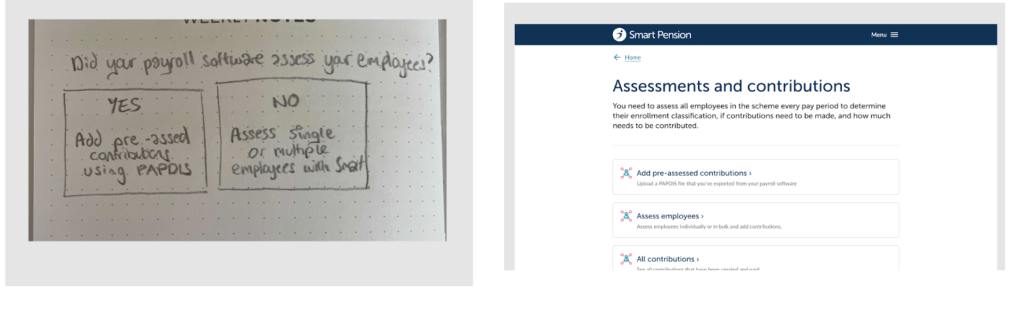
We then have two cards that link to add pre-assessed files from your payroll, or do the assessment right here on Smart’s software.
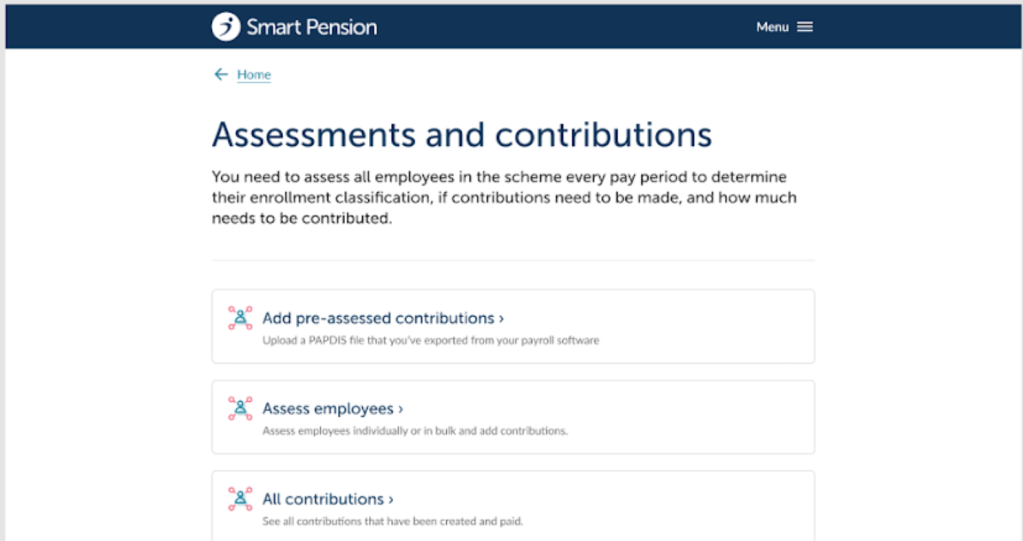
There’s still an opportunity to improve this experience further. Perhaps by having a user triaged by what type of assessment they use before they reach this screen, or selecting a preference so that it always shows one card instead of all of them.
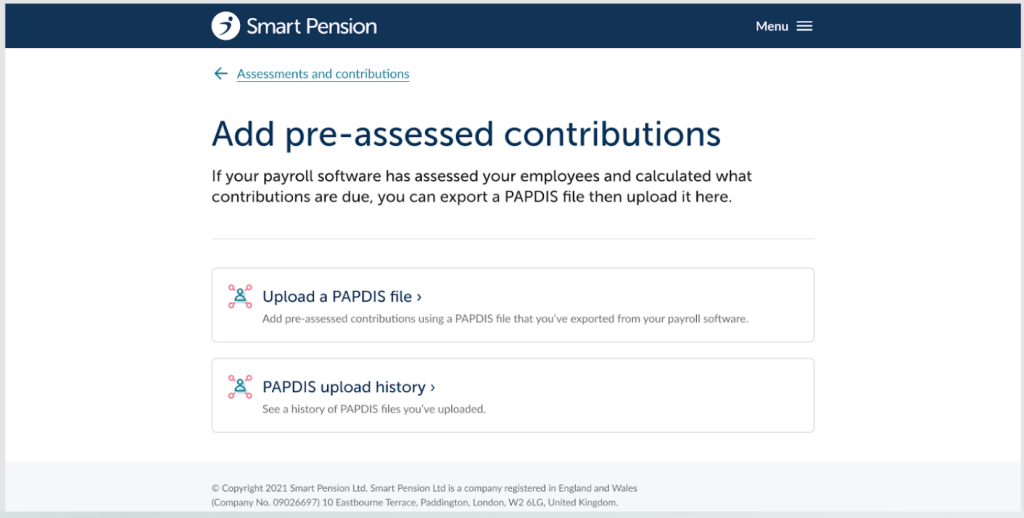
If you want to add pre-assessed contributions we then talk about PAPDIS rather than mentioning it upfront and, then introduce the idea of calculating contributions.
And if you haven’t got a pre-assessed file, you can now assess single or multiple employees using a form or a CSV. Once again, we’re no longer talking about uploading contributions but the act of assessing employees. As I was adding content I informed the UI designer about any tweaks they need to do. Here they’ll need to replace the icons. They’ll pick one and check with me that it fits the meaning of what the card says.
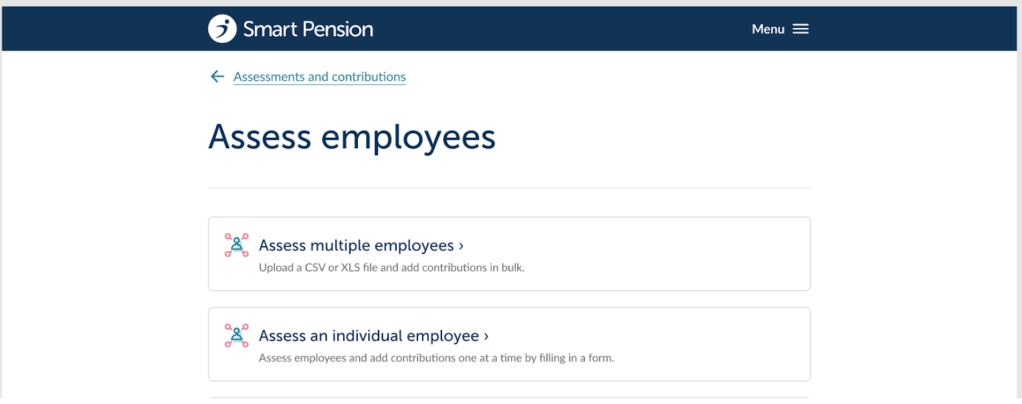
Next level down, if you want to assess multiple employees, I once again talk about calculating contributions and what’s due. At this level, I don’t repeat anything again about eligibility.
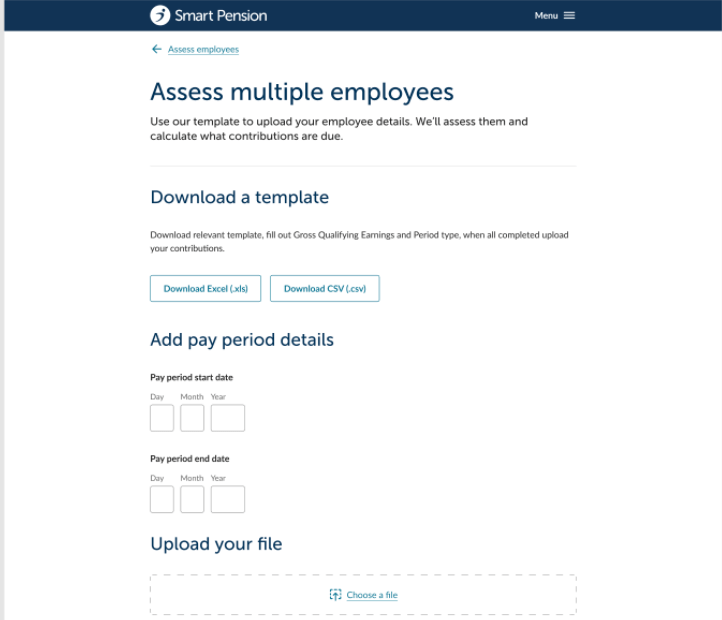
There are some small UX writing details to call out here – I used verbs in headings to keep things consistent. I could have numbered the steps, however we didn’t use that pattern elsewhere in the platform.
Once an employer uploads a file to assess multiple employees, we show a results screen.
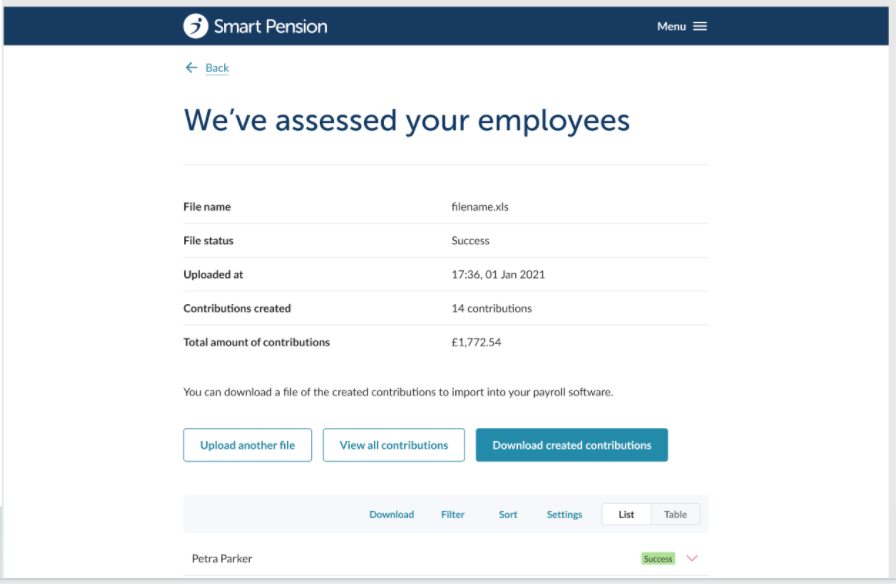
This is the happy path. Previously this results screen would be a dead end and it didn’t feel like the employer’s journey was complete. So I added a button for them to add another file as sometimes they upload multiple in one period. And a button to download all of the contributions that had been created, so they can add the information back into their own payroll software, or keep it for their own recordkeeping. I checked with the engineers that this was possible.
Whilst this new experience is still being built, the stakeholders and members of ops and customer service were very pleased with the changes.
 Conni Watson